How to Add an Announcement Bar in Squarespace (+ 5 Ways to Actually Use It)
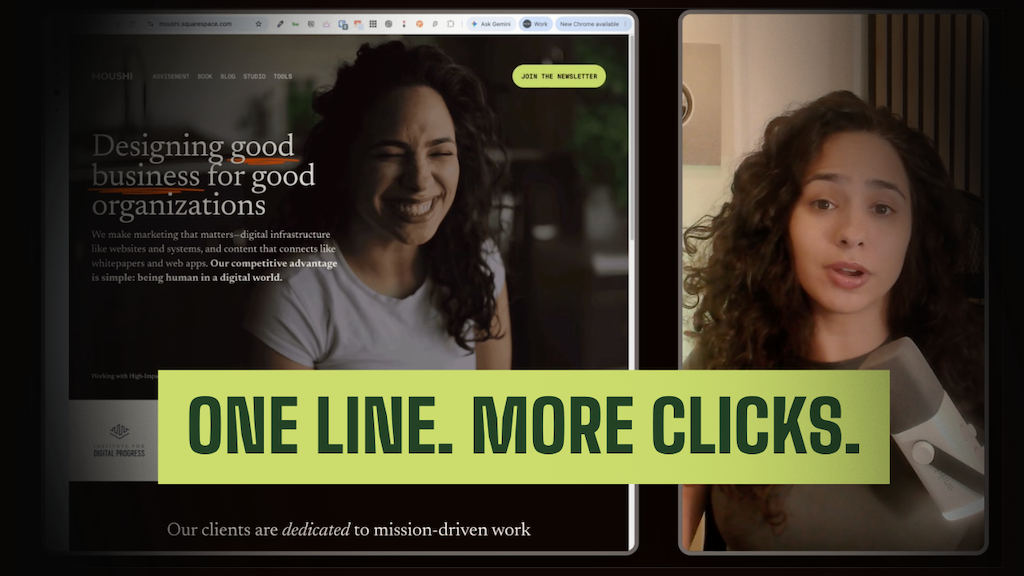
There's one line of copy that shows up on every page of your website. Here's how to turn it on, make it look like it belongs, and write one that actually gets clicked.
There's one line of copy that shows up on every single page of your website.
It's not your headline. It's the announcement bar: that thin strip across the very top of your site.
Most people either never turn it on, or they fill it with something forgettable. In this post, I'll show you how to set it up in about two minutes, style it so it looks like it belongs, avoid the three mistakes I see most often, and use it to guide visitors toward the one thing you want them to do.
Prefer to watch? The full walkthrough is below.
What Is the Squarespace Announcement Bar?
The announcement bar is a full-width banner that sits above your site's navigation. It appears across your whole website, so it's the perfect place for one timely, important message: a launch, an event, a free resource, or an update your visitors need to know about.
Think of it as the one sentence you'd say to every visitor if you could stand at the front door.
How to Add an Announcement Bar in Squarespace
Open the Pages panel in your site editor and scroll to the bottom to find the tools section. Depending on your version, it may be labeled Website Tools or Marketing Tools.
Click Announcement Bar.
Switch on "Enable announcement bar."
Write your message. You can make text bold or italic and add text links.
Decide how people will click. Link a few words of text, or use Attach Link to make the entire bar clickable.
Click Save. Your bar is live.
My recommendation: link the text or link the whole bar. Pick one, not both. Two competing click targets in one short line creates hesitation.
How to Style Your Announcement Bar
By default, the announcement bar uses your site's general fonts and colors. You can give it its own look.
To change the font: Open Site Styles, go to Fonts, then Assign Styles, and select the announcement bar. You can choose a preset or create custom settings.
To change the colors: This is the part that confuses most people. In Squarespace 7.1, the announcement bar is part of your header, so its colors live inside your header's color theme. Open Site Styles, go to Colors, find the theme your header uses, and adjust the announcement bar's background and text colors.
The goal is contrast. If your announcement bar blends into your site, it's wallpaper. A bold background with light text, or a light background with dark text, will stand out.
3 Common Announcement Bar Mistakes
1. "Where did my announcement bar go?"
When a visitor closes the announcement bar, it stays hidden for them. That includes you. If you dismissed it while testing, open your site in a private or incognito window to see what visitors see.
2. You're on a plan that doesn't include it.
The announcement bar is available on Squarespace's Core, Plus, and Advanced plans. If you can't find it anywhere, check your plan first.
3. Your message is too long.
Keep it to two lines at most, ideally one. What fits on desktop can wrap to three lines on a phone, so always check your mobile preview before you call it done.
5 Ways to Actually Use Your Announcement Bar
The rule I teach my clients: one bar, one message, one action.
Here's a simple formula for writing it:
What's happening + why it matters to them → a clear action verb
1. Grow your email list.
Point visitors to your best free resource.
Example: A free 5-day email to kickstart your week → Get it free
2. Open a waitlist or launch.
Build anticipation before doors open.
Example: Doors open soon for our next cohort → Save your seat
3. Announce an event.
Workshops, speaking engagements, live sessions, and open houses all belong here.
Example: Join our free live workshop on October 15 → Register now
4. Share real availability.
If your calendar is genuinely limited, say so. Honest scarcity helps people decide. (Only use this if it's true.)
Example: Two project spots left for November → Book a call
5. Send people to your best content.
Your newest video, guide, or case study can get steady traffic from every page of your site.
Example: New: how we rebuilt a client's site in one day → Watch it here
Announcement Bar FAQs
Can I make the whole announcement bar clickable?
Yes. Use the Attach Link option in the announcement bar settings to link the entire bar to a page, file, or web address.
Why can't I see my announcement bar?
Check three things: that the bar is enabled and saved, that your plan includes it (Core, Plus, or Advanced), and that you haven't dismissed it in your browser. A private browsing window is the quickest test.
Does the announcement bar work on mobile?
Yes, it displays on mobile. Keep your message short, because longer text wraps and takes up more of the screen.
Can I show more than one message?
Natively, the announcement bar shows one message at a time. That's a feature, not a limitation. One clear message will almost always outperform three competing ones.
Your Next Step
Your announcement bar is one small square in a much bigger website. Set it up today, write one clear message, and revisit it every month so it always reflects what matters most right now.
This post is part of my Squarespace Fundamentals Series, where we build your website one square at a time.
Ready to build (or rebuild) your site?
Start your Squarespace website: moushi.co/ss
Need a hand fixing a site that's already started? Learn about The Website Clean-Up: moushi.co/clean-up
Some links in this post are affiliate links. If you sign up through them, I may earn a commission at no extra cost to you. Thanks for your support!